RFP Demo User Guide
The purpose of the demo is to demonstrate how the system evaluates whether a vendor’s knowledge base meets the requirements specified in the RFP with respect to the validation criteria.
To see how the system performs the assessment, the user needs to complete the following steps:
-
In the Upload RFP file card, select the RFP using the file selector or drag and drop it into the designated area.
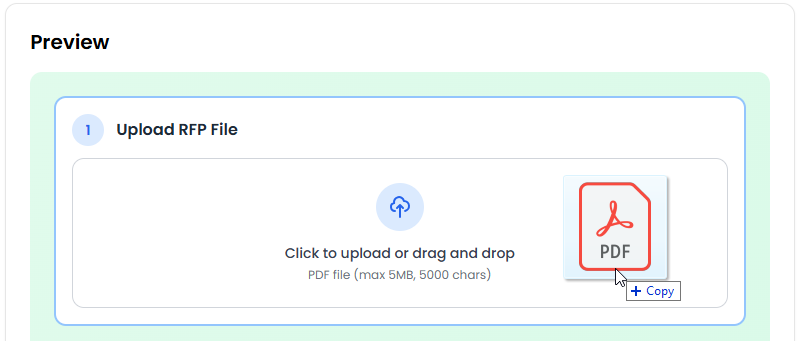
-
Similarly, upload the corresponding knowledge base file in the Upload Knowledge Base card.
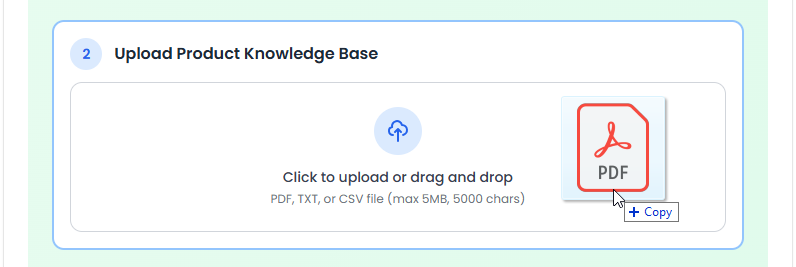
-
In the Enter Company Details card, specify the company name and email address to which the generated proposal will be sent.
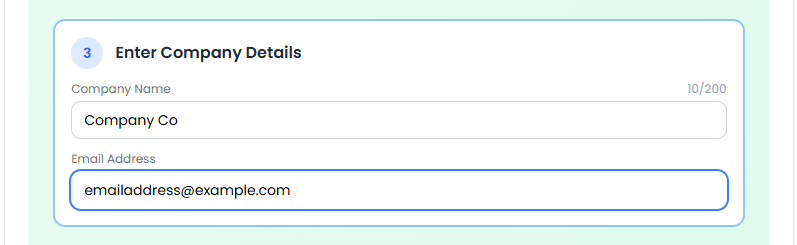
- In the RFP Validation card, review the default validation criteria:
- To add a new criterion, click the + Add New Criteria button.
- To remove an existing criterion, click the x button next to the respective criterion.

- Click the Generate Proposal button to start the generation process.
Once the user clicks Generate Proposal, the system updates the UI to display the following generation stages:
- Preparing Knowledge Base
- Preparing RFP
- Validating RFP
- Analyzing RFP Evaluation Criteria
- Drafting Proposal
After the proposal draft is completed, the system sends an email containing links to the generated proposal and a detailed report. When the process is finished, the system displays the Start New Submission button, allowing the user to clear the form and begin a new evaluation.
